
Level Up Your Stream: How to Use iTop Voicy for Discord and Games (Step-by-Step Tutorial)
Streaming and online gaming are more competitive than ever. Whether you’re building a Twitch channel, chatting on Discord, or teaming up in multiplayer games, standing out matters. One powerful way to make your content more entertaining and memorable is by transforming your voice in real time.
That’s where iTop Voicy comes in. As a versatile and easy-to-use voice changer, it allows you to modify your voice instantly while playing games or talking on Discord. From creating hilarious character voices to protecting your privacy, iTop Voicy can completely change your streaming experience.
In this step-by-step tutorial, you’ll learn exactly how to set up and use iTop Voicy for Discord and your favorite games.
Why Use a Voice Changer for Streaming?
Before diving into the tutorial, let’s understand why voice transformation is becoming popular among streamers and gamers. Using a voice changer can help you:
- Create a unique streaming persona
- Add humor and entertainment value
- Surprise your audience
- Protect your real identity
- Avoid voice-based harassment
A dynamic voice can instantly grab attention and make your streams more engaging.
Step-by-Step Tutorial: Use iTop Voicy for Discord and Games
Step 1: Download and Install iTop Voicy
Getting started is simple.
- Visit the official iTop Voicy website.
- Download the installer for Windows.
- Run the installation file.
- Follow the setup instructions.
The installation process takes only a few minutes. Once installed, launch the software.
Step 2: Set Up Your Microphone
When you first open iTop Voicy, you’ll need to configure your audio settings.
- Select your main microphone from the input device list.
- Choose your headphones or speakers as the output device.
- Test your microphone to ensure sound levels are clear and stable.
Proper audio setup ensures your modified voice sounds smooth and professional.

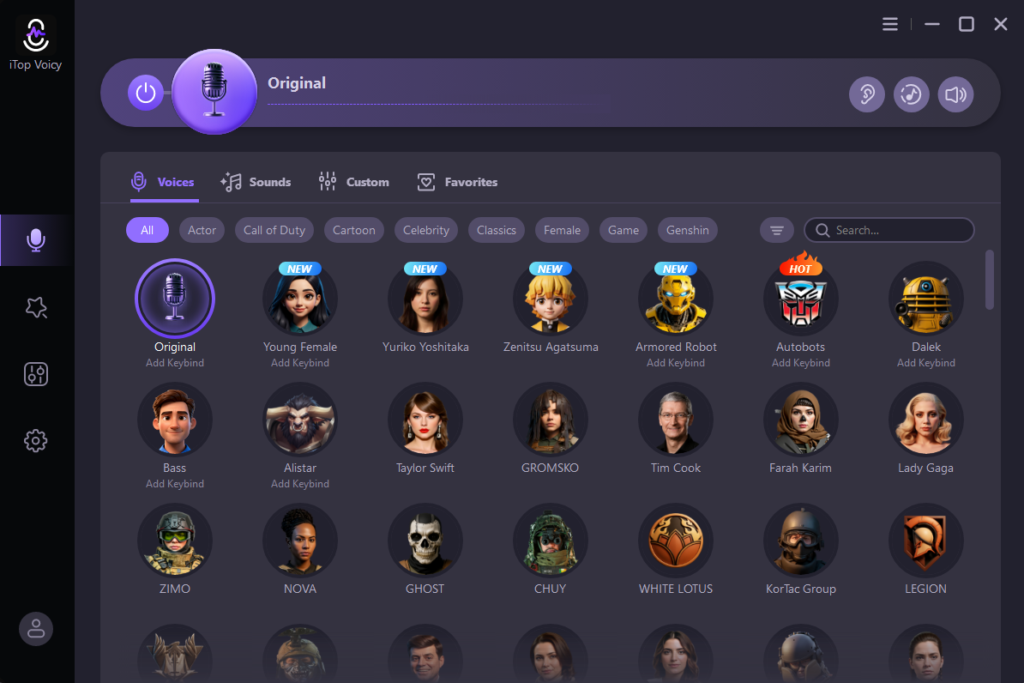
Step 3: Choose Your Voice Effect
Now comes the fun part — selecting your voice style.
iTop Voicy offers a wide variety of effects, including:
- Deep voice
- Female voice
- Cartoon-style voice
- Robot voice
- Monster voice
- Anime-inspired tones
Click on an effect and speak into your microphone to preview how it sounds. You can switch between voices instantly until you find the perfect match for your stream.
Step 4: Connect iTop Voicy to Discord
To use iTop Voicy with Discord, follow these steps carefully:
Inside Discord:
- Open Discord.
- Go to User Settings (gear icon).
- Click on Voice & Video.
- Under Input Device, select “iTop Voicy Virtual Audio Device.”
Once selected, Discord will now receive your modified voice instead of your raw microphone input.
Speak into your mic to test it. If everything is configured correctly, your friends will hear the transformed voice in real time.
Step 5: Use iTop Voicy in Games
Most multiplayer games use your system’s default microphone settings. Here’s how to connect it:
- Open your game’s audio settings.
- Locate the microphone or voice input option.
- Select “iTop Voicy Virtual Audio Device.”
After selecting it, test your in-game voice chat to confirm the effect is working.
Now you can sound completely different while playing your favorite titles.
Step 6: Use Soundboard Effects for Extra Entertainment
One standout feature of iTop Voicy is its built-in soundboard.
You can trigger:
- Meme sounds
- Funny reactions
- Applause effects
- Game-themed audio clips
These effects can be activated instantly during live streams or voice chats, adding another layer of interaction for your audience.
Many streamers use soundboards to create memorable moments that viewers love to share.

Step 7: Fine-Tune Voice Settings
If you want more control, you can adjust advanced settings such as:
- Pitch level
- Tone intensity
- Background noise reduction
- Echo adjustments
Fine-tuning helps your voice sound more natural and less artificial.
For professional-quality streams, small adjustments can make a big difference.
Tips for Better Streaming Results
To get the most out of your voice changer:
Use a Good Microphone
Clear input produces better output.
Avoid Overusing Effects
Switch voices strategically to keep your audience entertained without overwhelming them.
Test Before Going Live
Always test your audio levels before starting a stream.
Combine With Streaming Software
iTop Voicy works well alongside popular streaming platforms and recording tools.
Is It Safe and Performance-Friendly?
A common concern among gamers is whether additional software will reduce game performance.
iTop Voicy is designed to be lightweight and optimized for real-time processing. This voice changer for PC runs smoothly in the background without significantly impacting FPS or system performance. Just make sure your PC meets basic system requirements for the best experience.
Who Should Use iTop Voicy?
This tool is ideal for:
- Twitch streamers
- YouTube gamers
- Discord community moderators
- Roleplay gamers
- Casual players who enjoy humor
Whether you’re serious about content creation or just want to have fun with friends, a voice changer adds a new dimension to your online presence.
Final Thoughts
Streaming and gaming in 2026 are about more than just skill — they’re about personality and entertainment. Using iTop Voicy can help you stand out in crowded voice chats and live streams.
As a powerful and user-friendly voice changer, it offers real-time effects, soundboard features, and seamless integration with Discord and games. With just a few simple setup steps, you can completely transform your streaming experience. If you’re ready to level up your stream and create unforgettable moments, iTop Voicy might be the upgrade you’ve been looking for.